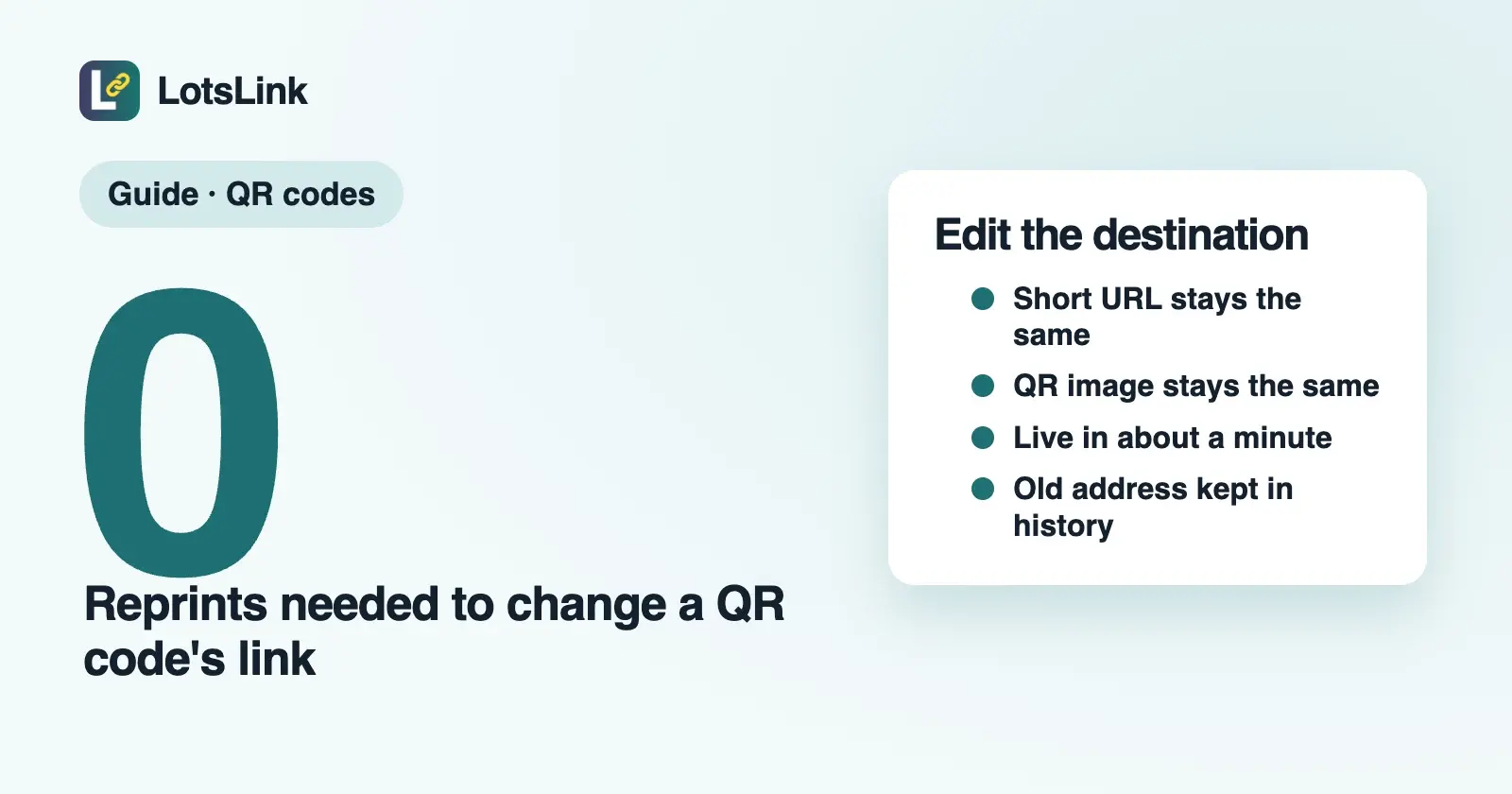
You can change where a printed QR code goes, but only if it is a dynamic code: one that points at a short link you control. Open the link, put in the new destination and save. The code on the flyer, menu or box does not change, and visitors reach the new page within about a minute. A static code holds the address itself and cannot be edited.
Below: how to tell which kind you have, three ways to make the change in LotsLink (dashboard, your AI agent, REST), a real run I did on 24 October 2026, and what to do if your code turns out to be static.
Dynamic or static: which one do you have?
A static QR code has the destination written into the pattern. Nothing sits in between, so there is nothing to edit and nothing to count. A dynamic QR code holds a short link such as lots.link/your-slug, and that short link redirects to the real page. Change the redirect and every printed copy follows. I wrote the full comparison in Dynamic vs Static QR Codes.
A quick test: scan the code and look at the address your phone shows before you open it. If it is a short link on the service that made the code, it is dynamic. If it is your full page address, it is static.
QR codes made in LotsLink are always dynamic, free and unlimited. They always open the link's short URL, so every scan is also counted as a click on that link.
What stays the same when you change the destination
- The short URL and the QR image. Nothing on the printed piece changes.
- The slug. Don't change it. A new slug is a new short URL, and every code already printed with the old one stops working.
- Clicks and history. Scan and click history stays on the link.
- UTM tags. If the link was created with UTM tags and the new address does not set its own, LotsLink adds the original tags back, so campaign reporting does not break.
The new address gets the same checks as a new link: HTTP or HTTPS only, and known phishing or malware pages are refused. The change reaches visitors within about a minute, because redirects are cached briefly.
Who can change a link
Owners and admins of a workspace can change any link. Members can change only the links they created. Viewers can read but not change anything. The same rules apply in the dashboard, through an agent and over REST.
Way 1: the dashboard
- Sign in at lots.link and open Links.
- Open the menu on the link your QR code uses and choose Edit Link.
- Put the new address in Destination URL. The dialog notes that the short link and its QR code stay the same.
- Save. The short URL and QR code are untouched; give it a minute and test by scanning the printed code.
Way 2: your AI agent
If you use ChatGPT, Claude or another agent with LotsLink connected (setup), you can just ask:
Change the destination of lots.link/spring-menu to https://example.com/summer-menu. Keep the slug, then show me the destination history.
The agent calls lotslink_update_link with the new original_url, then lotslink_get_link to read the history. It acts with your role, so a member's agent can edit only that member's links.
Way 3: REST
Use an API key from your LotsLink dashboard (or lotstech.com/api). PUT /api/v1/lotslink/link/:link_id with workspace_id and original_url changes the destination. The full request format is in the API docs. If you build around the API, the URL shortener API guide covers creating links and reading analytics from your own code.
curl -X PUT https://api.lots.link/api/v1/lotslink/link/<link_id> \
  -H "X-API-Key: <your key>" \
  -H "Content-Type: application/json" \
  -d '{"workspace_id":"<workspace_id>","original_url":"https://example.com/summer-menu"}'
A real run, 24 October 2026
I did this through the LotsLink MCP server, the way your agent would, on a test link to example.com pages:
- Created a link to
https://example.com/menu-springwith the slugqr-edit-demo-oct24and UTM tagsutm_source=flyer,utm_medium=print,utm_campaign=qr-edit-test. - Made its QR code, a 512 px PNG of
https://lots.link/qr-edit-demo-oct24. The code's URL was saved on the link. - Checked the redirect. The short link answered with a redirect to the spring page, UTM tags attached.
- Changed the destination to
https://example.com/menu-summerwithlotslink_update_link. The reply said "Destination updated. The short URL and QR code stay the same." and flagged that the redirect cache expires within a minute. The saved address came back as the summer page with all three UTM tags added again. - Watched the redirect. For about a minute it still went to the spring page; then it went to the summer page, tags included. Same short URL, same QR image.
- Read the history with
lotslink_get_link. The link carries adestination_changeslist, newest first, with the old address, the new one and the time:
"destination_changes": [
  {
    "previous_url": "https://example.com/menu-spring?utm_source=flyer&utm_medium=print&utm_campaign=qr-edit-test",
    "new_url": "https://example.com/menu-summer?utm_source=flyer&utm_medium=print&utm_campaign=qr-edit-test",
    "changed_by": "<user id>",
    "changed_at": "2026-10-24T03:35:33Z"
  }
]
- Turned the link off by setting
is_activeto false, then requested the short URL again. After the cache expired it answered410with the text "This link has been disabled by its owner." I disabled the test link rather than deleting it.
Turning a link off for good
To retire a printed code, set the link inactive (Deactivate in the dashboard, is_active: false through your agent or REST). Visitors then get a 410 page saying the link was disabled, instead of landing on an old page. You can reactivate it later, and its history stays. Deleting a link removes its click statistics and QR code, so deactivate unless you really want it gone.
If your printed code is static
A static code cannot be edited, because the address is the pattern. Your options:
- Reprint with a new code. Make it a dynamic one this time: create a LotsLink short link to the page, generate its QR code, and print that.
- If the old page is still yours, redirect the old address to the new page on your own site. That works only when the printed address is on a domain you control.
Either way, next time use a dynamic code so the next change costs nothing. To see scan counts for a printed code, read how to track QR code scans, and if you are choosing a generator, see the best QR code generators with tracking.
FAQ
Can I change a QR code's link after printing it?
Yes, if it is a dynamic code. The code points at a short link, and you change where that link goes. A static code cannot be changed.
Does the QR code image change when I edit the destination?
No. The short URL and the QR image stay the same, so every printed copy keeps working.
How long until the new destination works?
About a minute. Redirects are cached briefly, so some visitors may still see the old page for that time.
Do I lose my scan history or UTM tags?
No. Clicks stay on the link, and the UTM tags the link was created with are added again when the new address has none of its own.
Who is allowed to edit a link?
Owners and admins can change any link in the workspace, members only the links they created, and viewers none.
Can I see what a link used to point to?
Yes. destination_changes on the link lists each change with the old address, the new address and the time.
What happens if I turn the link off?
Visitors get a 410 page saying the link was disabled by its owner. You can turn it back on later.