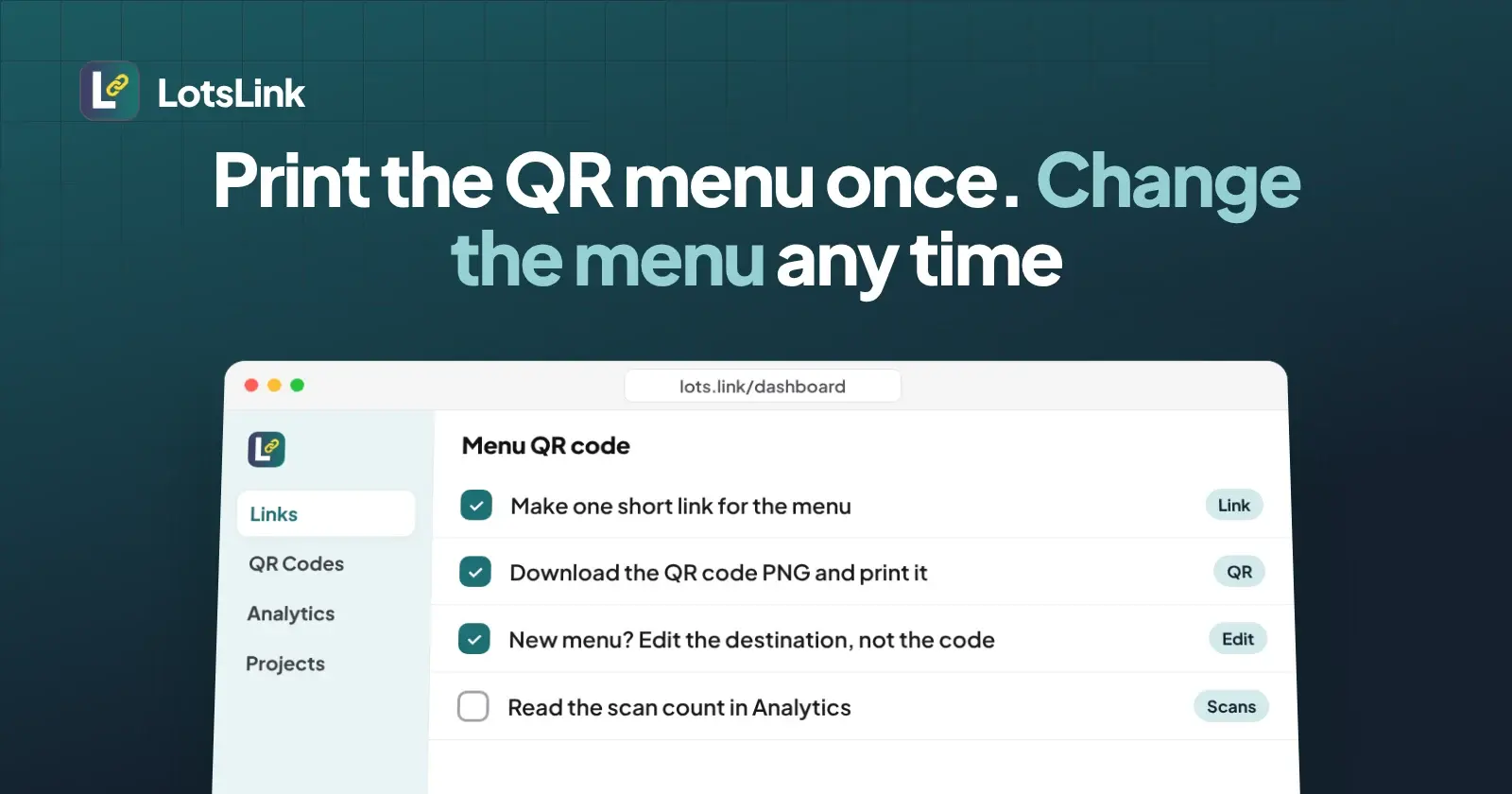
You can print a menu QR code once and change the menu behind it as often as you like, for free. Make a short link in LotsLink, make the QR code from that short link, and print the code. When the menu changes, edit the link's destination: the printed code keeps working, and every scan is counted in the link's analytics.
I built LotsLink, and this is the setup I'd use for a cafe or restaurant. I checked the LotsLink docs, pricing page and help page on 6 November 2026 for everything below. Where the menu itself lives (a PDF on your own website, a Google Drive link, a page you already have) is your choice. LotsLink only needs the address.
What is free and what isn't
Links, clicks, QR codes, analytics, workspaces and team members are free and unlimited on every account, with no plan needed. The one limit is on creation: up to 1,000 new links per person in any 24 hours. A menu QR code needs one link, so you won't come near it.
What you pay for is your own custom domain, such as go.yourcafe.com. A plan covers custom domains (Starter is $9 a month), or you pay $4 per custom domain per month with no plan. You don't need one for this. Your link lives on lots.link, and each person also gets one free lots.link subdomain. Eligible new users get free credits to try custom domains, no card needed.
So for a printed menu with scan counts, the free path covers the link, the QR code, editing the destination and the scan counts.
How the menu QR code works
The QR code doesn't contain your menu address. It contains a short URL, and the short URL redirects to the menu. That one step is what makes the code editable. If you put your menu address straight into a QR code, the code is fixed and a new menu means a new print run. Direct codes also bypass LotsLink, so nothing is counted. I go through the difference in dynamic vs static QR codes.
Make the menu QR code in six steps
- Sign in at lots.link. You sign in with Google or an email code.
- Create a link. Open Create Link and paste the address of your current menu. Add a custom slug such as
sample-cafe-menu. Slugs are 7 to 40 letters, numbers, hyphens or underscores, and a slug with a brand name or a word like "verify" or "secure" is refused to stop phishing. - Make the QR code. Open QR Codes, choose the link and select Generate QR Code.
- Download the PNG and put it on your table cards, window sticker or printed menu. Test the printed copy with a phone before you order a big run.
- Change the menu later. Open the link and change its destination to the new menu address. It applies at once.
- Read the scans. Open Analytics for the link.
The new destination gets the same safety check as a new link: LotsLink refuses links to known malicious sites. Plain HTTP or HTTPS addresses are fine.
What you can change after printing
| You change | Does the printed code still work? |
|---|---|
| The menu address (the link's destination) | Yes. The slug, short URL and QR code stay the same. |
| The menu file or page itself, at the same address | Yes. Nothing in LotsLink changes. |
| The link's project or expiry date | Yes, until it expires. |
| The slug | No. The short URL changes, so the old printed code stops matching. |
| Switching the link off or deleting it | No. Switched off, visitors see "This link has been disabled by its owner". Deleting is permanent and removes the clicks. |
So keep the slug, and edit only the destination. The link also keeps a list of past destination changes, so you can see when the menu address was last changed. For the longer version, read how to change a QR code's link after printing.
The scan counts you get
A scan that opens your short URL goes through the same redirect as a click and is recorded as a visit. For one link, the analytics show:
- the all-time total and the visits in the period you pick
- the average per day and the peak day
- a daily timeline
- top countries and cities
- devices and referrers
You can export one link's analytics, or the whole workspace's, as CSV or JSON.
Be clear about what the number means. These are recorded visits, not unique people. Known bots, link previews and prefetches are not counted, and a repeat visit from the same visitor to the same link within 10 seconds counts once. Location is approximate and sometimes unavailable. LotsLink doesn't store visitor IP addresses, so there is no unique-visitor count. For more on what counts, see how to track QR code scans.
If you print the code in several places, make one link per place (table card, window, takeaway bag), all with the same destination. Each link then has its own count. I walk through the same idea for review codes in counting scans per placement.
Download format and size
The QR code is a PNG image of your short URL. In the dashboard you download it. Through an agent or the API you can pick a size from 150 to 1024 pixels (512 by default) and the code and background colors. Keep strong contrast between the two, dark on light, so phones scan it reliably.
Do it with your AI agent instead
If you already use Claude, ChatGPT or another agent, connect LotsLink from https://lots.link/agents and ask it. The tools are lotslink_create_link, lotslink_create_qr_code, lotslink_update_link and lotslink_get_link_analytics. Something like:
In my LotsLink workspace, create a short link to my menu address with the slug sample-cafe-menu, make a QR code for it, and give me the image URL.
Later: "Change the destination of sample-cafe-menu to my new menu address." Changing a destination needs the Create and edit permission you tick when you connect, not Delete. The dashboard does the same job, and everything an agent does shows up there.
If you compare QR generators first
If you want to see how other generators handle editing, scan limits and what happens when a plan ends, I compare them in the best QR code generators that don't expire, and the tracking-focused list is the best QR code generators with tracking. With LotsLink the code points at a short link in your account, and editing and counting are free.
FAQ
Can I change my QR code menu without reprinting it?
Yes, if the printed code points to a LotsLink short link. The code holds the short URL, not the menu address. Change the link's destination and the new menu opens for every visitor at once, while the slug, short URL and QR code stay the same. Don't change the slug, because that changes the URL the printed code opens.
Is a QR code menu with scan counts really free?
Yes. On lots.link, short links, clicks, QR codes and analytics are free and unlimited on every account, with no plan needed. You pay only if you add your own custom domain. Up to 1,000 new links per person in any 24 hours.
How do I see how many people scanned my menu QR code?
Open the menu link's analytics. A scan that opens your short URL is recorded as a visit, and you see the all-time total, visits in a period, the average per day, the peak day, a daily timeline, top countries and cities, devices and referrers. You can export the data as CSV or JSON.
What file do I get, and how big is it?
A PNG image of your short URL. Through the API or an AI agent you can choose a size from 150 to 1024 pixels (512 by default) and the code and background colors. Keep strong contrast so phones can scan it.
Are the scan counts exact?
They are recorded visits, not unique people. Known bots, link previews and prefetches are left out, and a repeat visit from the same visitor to the same link within 10 seconds counts once. LotsLink doesn't store visitor IP addresses, so there is no unique-visitor count.
What would break a printed menu QR code?
Changing the link's slug, deleting the link, or switching it off. A switched-off link shows visitors "This link has been disabled by its owner". Changing the destination is the safe edit.
The short version
Short link first, QR code second, print once. Edit the destination when the menu changes, never the slug, and read the scans in Analytics. Start at lots.link, where links and QR codes are free. If the prices matter to you, they are on the pricing page.